













 >
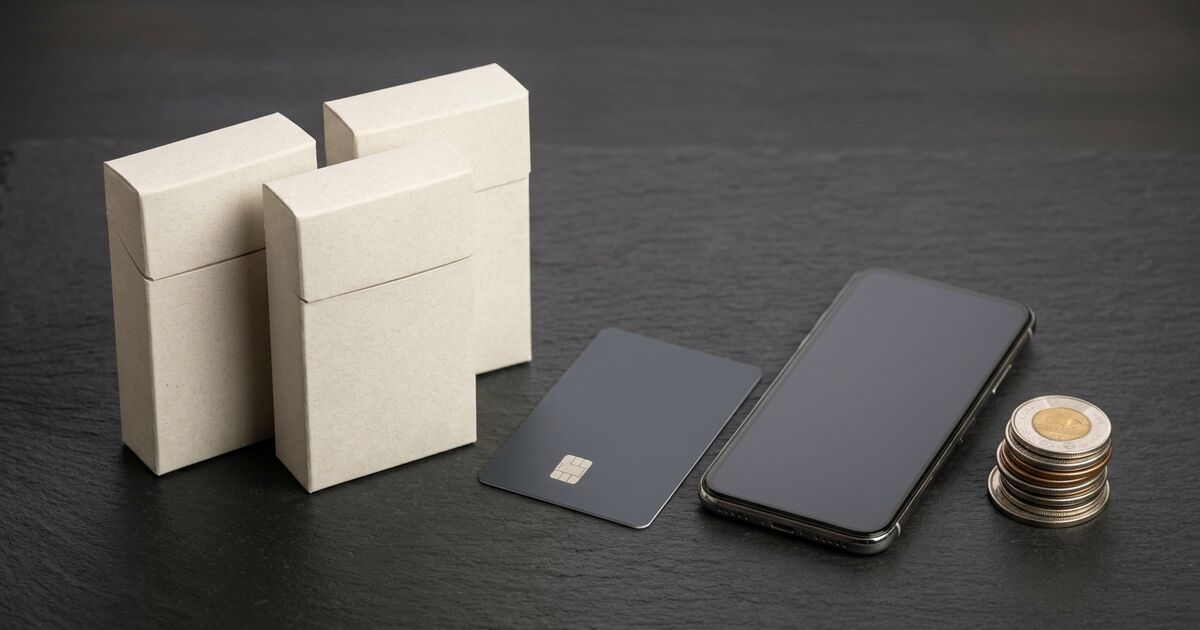
If you are ready to buy cigarettes online in Canada, the payment step should be predictable. Buy Cigs Online currently presents three checkout paths: Credit Card, Interac EMT (Email Money Transfer), and Cryptocurrency. Each route handles the order differently after you click Place Order, so choosing the right one depends on how you prefer to pay and how closely you want to follow the payment instructions.
This guide explains how to pay for cigarettes online in Canada, how each option works at checkout, what to have ready, and how to reduce avoidable payment delays. It also shows how to choose products before you pay, because a clean cart makes the checkout process easier to complete and easier to check afterward.
Start with the cart, not the payment method
The payment method is the last part of the buying decision. Start by deciding which brand family, named variant, and order size you want. The BCO Shop brings the catalog together, while the Cigarettes category narrows the store to cigarette products.
Read the written product name carefully before adding an item. A brand may have several labels that look similar in a menu or pack image, but the title on the product page is the reference point. For example, shoppers comparing a stronger named variant can open BB Full Flavor Cigarettes, Classics Full Flavor Cigarettes, or Playfare Full Flavor Cigarettes and confirm the exact selection before adding it to the cart.
If you prefer a product with a lighter named variant, compare the actual listings rather than relying on pack colour alone. Useful starting points include BB Light Cigarettes, Classics Lights Cigarettes, Playfare Light Cigarettes, and Nexus Light Cigarettes. The catalog label tells you which variant you are selecting.
How to pay for cigarettes online in Canada: the three checkout paths
1. Credit Card
Select Credit Card when you want to use a card through the hosted payment page. BCO’s current checkout description says that you will be securely redirected to the payment page to complete the purchase. That means the card-entry step may appear on the payment processor’s page rather than inside the first checkout screen.
- Check the cart total and shipping details before selecting the gateway.
- Choose Credit Card and continue through the redirect.
- Enter the requested card and billing information on the payment page.
- Wait for the payment result and return to the order confirmation if prompted.
- Save the BCO order number and the confirmation email.
Do not close the browser while the redirect is processing. If the page takes a moment to return, check your email and the order confirmation before trying to place the order again. Repeating the checkout immediately can create confusion about whether the first attempt completed.
2. Interac EMT (Email Money Transfer)
Interac EMT is the email money transfer option in the BCO checkout. With this route, the order is placed on hold while the transfer is completed. The payment instructions appear at the bottom of the checkout or order page, and a copy is also sent by email for reference.
Follow the instructions attached to your own order. Recipient details, the transfer amount, and the security information shown at checkout are the information that matters for that order. Do not use an old screenshot, a saved recipient, or instructions from another purchase. Payment instructions can be updated, and the order page is the current source.
- Choose Interac EMT (Email Money Transfer) at checkout.
- Place the order and record the order number.
- Open the payment instructions shown on the confirmation page and in the email.
- Send the exact amount requested using the details provided for that order.
- Copy any security question or reference exactly as displayed.
- Keep the transfer confirmation and BCO order email together until the order moves forward.
Interac orders can look different from card orders because the store receives the order before the transfer is matched. An on-hold status at this point is part of the payment flow. If you have sent the transfer and the status has not changed, check that the amount, recipient details, and order reference matched the instructions before contacting support.
3. Cryptocurrency
Select Cryptocurrency if you want to complete the payment from a supported crypto wallet or exchange. The checkout presents a currency selection and then displays the amount and destination details for the transaction. The payment screen is the source of truth for the currency, network, amount, and address attached to your order.
- Choose Cryptocurrency and review the currency shown on the payment page.
- Confirm that your wallet uses the same network requested by the payment screen.
- Send the exact displayed amount to the displayed address.
- Check every character of the destination address before confirming the transaction.
- Complete the payment within the window shown by the checkout.
- Save the transaction ID and the BCO order number.
A crypto transfer sent on the wrong network, sent to an old address, or sent for the wrong amount can be difficult to match. Do not reuse a wallet screen from a previous order. Generate the payment from the current order and keep the confirmation page open until the checkout records the transaction.
Quick payment matching guide
Shopping situation                         Checkout choice
--------------------------------------------------------------
Want to pay with a bank card                Credit Card
Prefer an email money transfer              Interac EMT
Already use a supported crypto wallet       Cryptocurrency
Need to compare products first              Shop / Cigarettes category
Want a larger cart or a free-item tier      Review total before paying
This is a preference guide, not a ranking. The best method is the one you can complete with the exact instructions shown for your order. If a payment method is unavailable at checkout, do not try to force a different route through an old link. Return to the available payment choices and use the option that the current checkout presents.
Choose a product lineup before you reach checkout
A payment guide is only useful when it leads to a clear cart. If you are comparing named full variants across brand families, open the individual listings and keep the final choices together in one cart. Examples include Nexus Full Flavor Cigarettes and Time Full Cigarettes. These links are product pages, so you can confirm the title and current listing details before selecting a quantity.
Some shoppers want to compare a pair from the same family. The Canadian Premium Original and Canadian Premium Special Cigarettes pages make that comparison direct. Putters, dM, Canadian, and other stocked families can be found through the main category when you want a broader search instead of one brand pair.
If you are changing brands, use a sampler or a smaller first order to test your selection before building a larger cart. The cigarette bundle deals guide explains how free-item offers interact with order planning, while the first-time online cigarette buyer’s guide covers the broader shopping process.
Plan the order total before choosing a payment option
Your cart total can affect how you shop, especially when you are deciding between one product family and a mixed-brand order. Check the quantity and package choices on each product page, then review the cart before starting payment. Avoid selecting a gateway and then changing several items unless you are willing to recheck the amount and payment instructions.
For carton planning, read the cigarette carton prices guide before you pay. It focuses on comparing online value and order size, which is different from the payment-method question. If the cart is being built around a larger order threshold, the free shipping cigarettes guide can help you check the total before placing the order.
BCO also has spend-based free-item products in the catalog. If you are using an offer, confirm that the cart contains the products and total you intended before choosing Credit Card, Interac EMT, or Cryptocurrency. The offer and the payment are separate checks: first confirm the cart qualifies as displayed, then confirm the payment amount matches the final order.
Checkout checklist for a clean payment
- Confirm each product title, variant name, and quantity.
- Check the delivery address and email address.
- Review the final order total after shipping and any cart offer.
- Select the payment method you can complete now.
- Read the gateway instructions before leaving the checkout.
- Save the order number before closing the confirmation page.
- Keep the payment receipt, transaction ID, or transfer confirmation.
The email address matters because Interac instructions are copied to the order email, and all payment paths use the order confirmation to connect the transaction with the cart. A misspelled email can make a completed order harder to follow even when the payment itself was sent correctly.
Common payment mistakes and the practical fix
The buyer paid from an old instruction
Use the instructions generated for the current order. This applies to Interac recipient information, security details, crypto currency selection, destination address, and displayed amount. Previous orders are not templates for a new payment.
The buyer sent the wrong amount
Compare the payment receipt with the final order total and the amount shown in the payment instructions. Small differences can prevent an automatic match. If the payment has already been sent, keep the receipt and provide the order number when asking support to review it.
The buyer clicked Pay again after a slow response
Check the order email, account order history, and bank or wallet record first. A slow redirect does not prove that the first attempt failed. Confirm the first order status before starting a second checkout.
The crypto wallet used a different network
Stop and review the payment page before sending. The currency name alone is not enough; the network and destination must also match. Send only after the wallet and checkout show compatible details.
What to keep after payment
Keep four details until the order is complete: the BCO order number, the final cart total, the payment method, and the payment confirmation. For a card payment, this may be the processor result and order email. For Interac, keep the transfer confirmation. For cryptocurrency, keep the transaction ID and the payment page details.
These records make support questions specific. Instead of saying that a payment did not work, you can identify the order, the method, the amount, and the time of the attempt. That gives the store a clear starting point for checking the order.
Match the payment route to your order routine
Credit Card is usually the shortest path when you want to finish the purchase in one browser session. You review the cart, follow the secure redirect, and keep the result with the order email. Interac EMT works better when you are comfortable moving between the store confirmation and your banking app. The order remains easy to track as long as you save the order number and use the instructions generated for that purchase.
Cryptocurrency needs the most careful pre-send check because the payment depends on the selected currency, network, address, and amount. Have your wallet ready before you choose the method, but do not create the transaction until the current payment page supplies the destination details. This avoids copying details from a previous order or sending funds before the cart is final.
Mixed-brand orders benefit from the same preparation. Choose the products first, record the total, and then select the gateway. For example, you might compare a full variant with a lighter named variant, add the final quantities, and only then decide whether Credit Card, Interac EMT, or Cryptocurrency fits the way you want to complete the purchase.
A two-minute review before you click Place Order
- Read the product names in the cart from top to bottom.
- Remove any duplicate item created during browsing.
- Check that the email address can receive the confirmation.
- Review the final amount after shipping and cart offers.
- Choose the payment route you can finish without switching plans.
- Take a screenshot or save the order number after submission.
This short review catches most checkout problems before they become payment questions. It also gives you a clean record if you need help later. When the cart, order number, and payment receipt agree, support can review the transaction without reconstructing which products you intended to buy.
Frequently asked questions
Which payment method should I choose?
Choose Credit Card if you want the hosted card checkout, Interac EMT if you prefer an email money transfer, or Cryptocurrency if you already use a supported wallet. The current checkout is the final authority on which methods are available for your order.
Why is an Interac order on hold?
Interac orders are placed on hold while the transfer is completed and matched. Follow the order-specific instructions, keep the transfer confirmation, and use the order number if support needs to review the payment.
Can I change the payment method after placing the order?
Do not assume that switching methods will update the original order automatically. Check the order confirmation and contact BCO support with the order number before sending a second payment.
Should I choose products before opening checkout?
Yes. Decide on the brand, named variant, quantity, and final total first. You can start with the Shop or browse the Cigarettes category, then choose the payment route after the cart is final.
Ready to place the order?
Open the BCO Shop, select the exact products you want, review the final total, and choose the payment path that fits your checkout routine. If you are still comparing brands, start with the Cigarettes category and keep the product names visible while you build the cart. Once the order is placed, follow the current payment instructions exactly and save the confirmation with your order number.